> ## Documentation Index
> Fetch the complete documentation index at: https://app.redbrickai.com/docs/llms.txt
> Use this file to discover all available pages before exploring further.
# Account settings and MFA
> Manage your RedBrick AI account, including multi-factor authentication, biographical information, password, weekly summary emails, and application version.
You can access your Account Settings by clicking on the dropdown field in the top left corner of the screen.
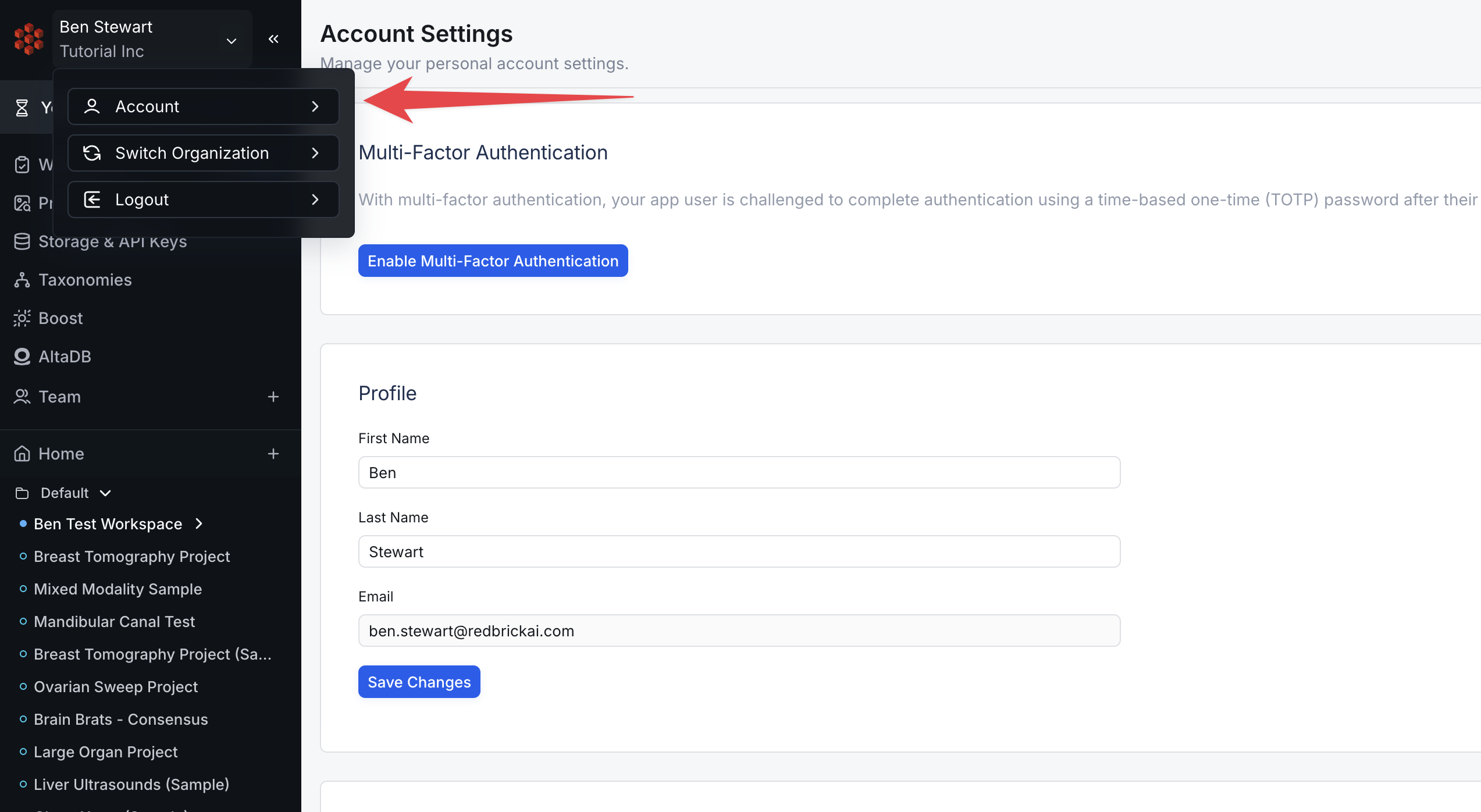 Inside of Account Settings, you can find subsections for configuring or modifying:
* Multi-factor Authentication (MFA) on RedBrick AI;
* Basic biographical information;
* Your password;
* Your weekly summary emails;
You can also verify the current version of the RedBrick AI application.
***
## Multi-factor Authentication
You must have MFA enabled in order to work on the platform.
RedBrick AI offers both Email MFA and Authenticator App MFA.
If you have a unique [Single Sign-on (SSO)](/docs/organizations/single-sign-on) protocol enabled for your RedBrick environment, you are considered to have MFA enabled.
***
## Weekly Summary Emails
You can opt in to weekly emails that provide an overview of your productivity within a given Organization.
If you have access to multiple RedBrick Organizations, you can toggle the Weekly Email Summary Emails on or off for each Organization!
Simply use the toggle to activate or deactivate these emails as per your preference.
Inside of Account Settings, you can find subsections for configuring or modifying:
* Multi-factor Authentication (MFA) on RedBrick AI;
* Basic biographical information;
* Your password;
* Your weekly summary emails;
You can also verify the current version of the RedBrick AI application.
***
## Multi-factor Authentication
You must have MFA enabled in order to work on the platform.
RedBrick AI offers both Email MFA and Authenticator App MFA.
If you have a unique [Single Sign-on (SSO)](/docs/organizations/single-sign-on) protocol enabled for your RedBrick environment, you are considered to have MFA enabled.
***
## Weekly Summary Emails
You can opt in to weekly emails that provide an overview of your productivity within a given Organization.
If you have access to multiple RedBrick Organizations, you can toggle the Weekly Email Summary Emails on or off for each Organization!
Simply use the toggle to activate or deactivate these emails as per your preference.