> ## Documentation Index
> Fetch the complete documentation index at: https://app.redbrickai.com/docs/llms.txt
> Use this file to discover all available pages before exploring further.
# Create an items list JSON for imports
> Build a RedBrick AI items list JSON file that points to data in AWS S3, GCS, or Azure Blob storage so each entry becomes a task in your annotation project.
## Overview
An Items List is a JSON file that points the RedBrick AI platform to the data in your external storage and allows you to selectively import data points. The format of your Items List depends on both the type of cloud storage you have integrated with RedBrick AI and the type of data you are uploading.
For solution-specific instructions regarding how to format your Items List with [AWS S3](./configuring-aws-s3#items-path), [GCS](./configuring-gcs#items-path), or [Azure Blob Storage](./configuring-azure-blob#items-path), please refer to the corresponding configuration guide.
It's important to note that each entry in your Items List **will be created as a separate Task**, which can then be annotated as a single unit. You can find detailed explanations of each key in our [Format Reference](https://docs.redbrickai.com/python-sdk/reference/annotation-format#tasks-json).
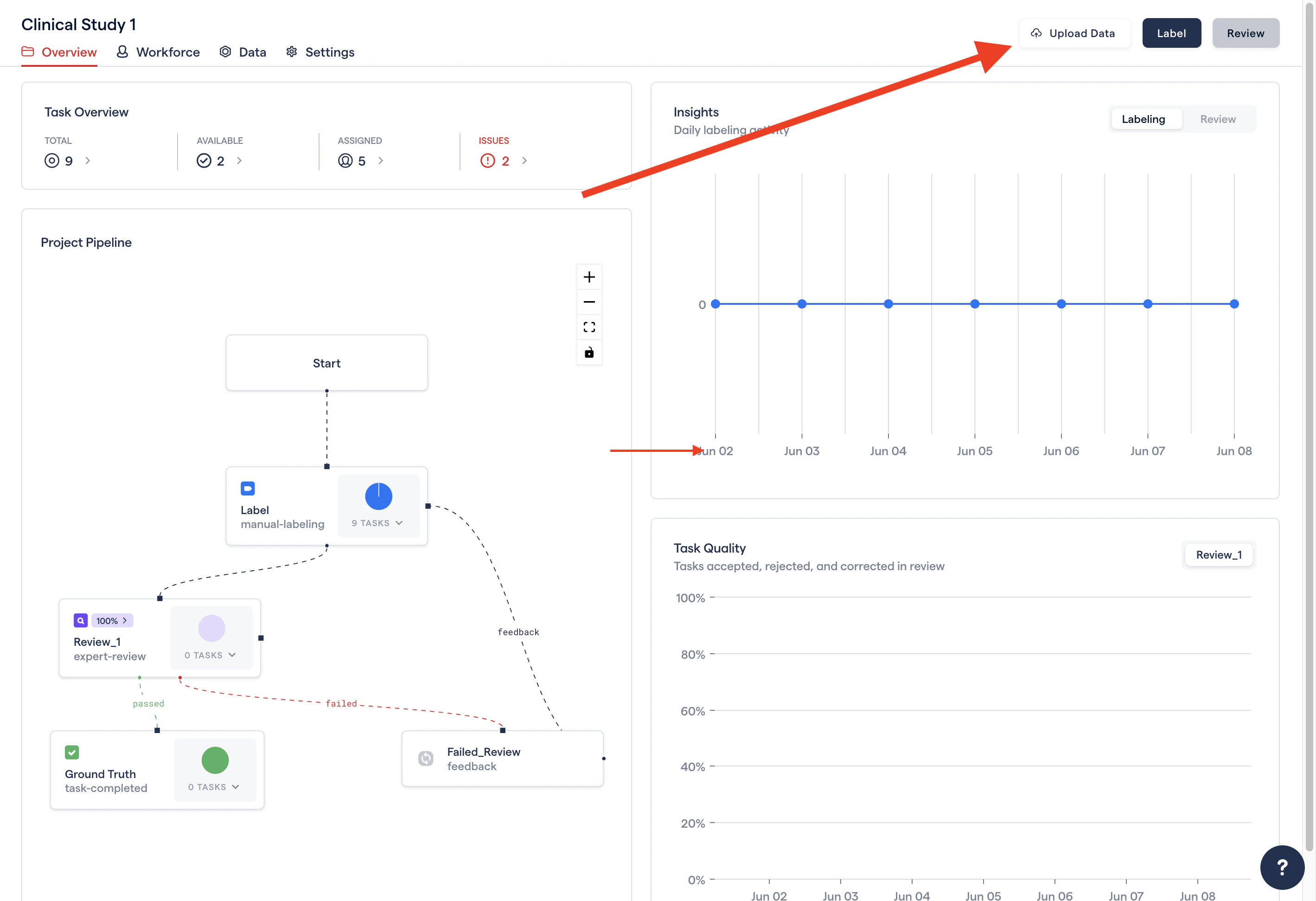
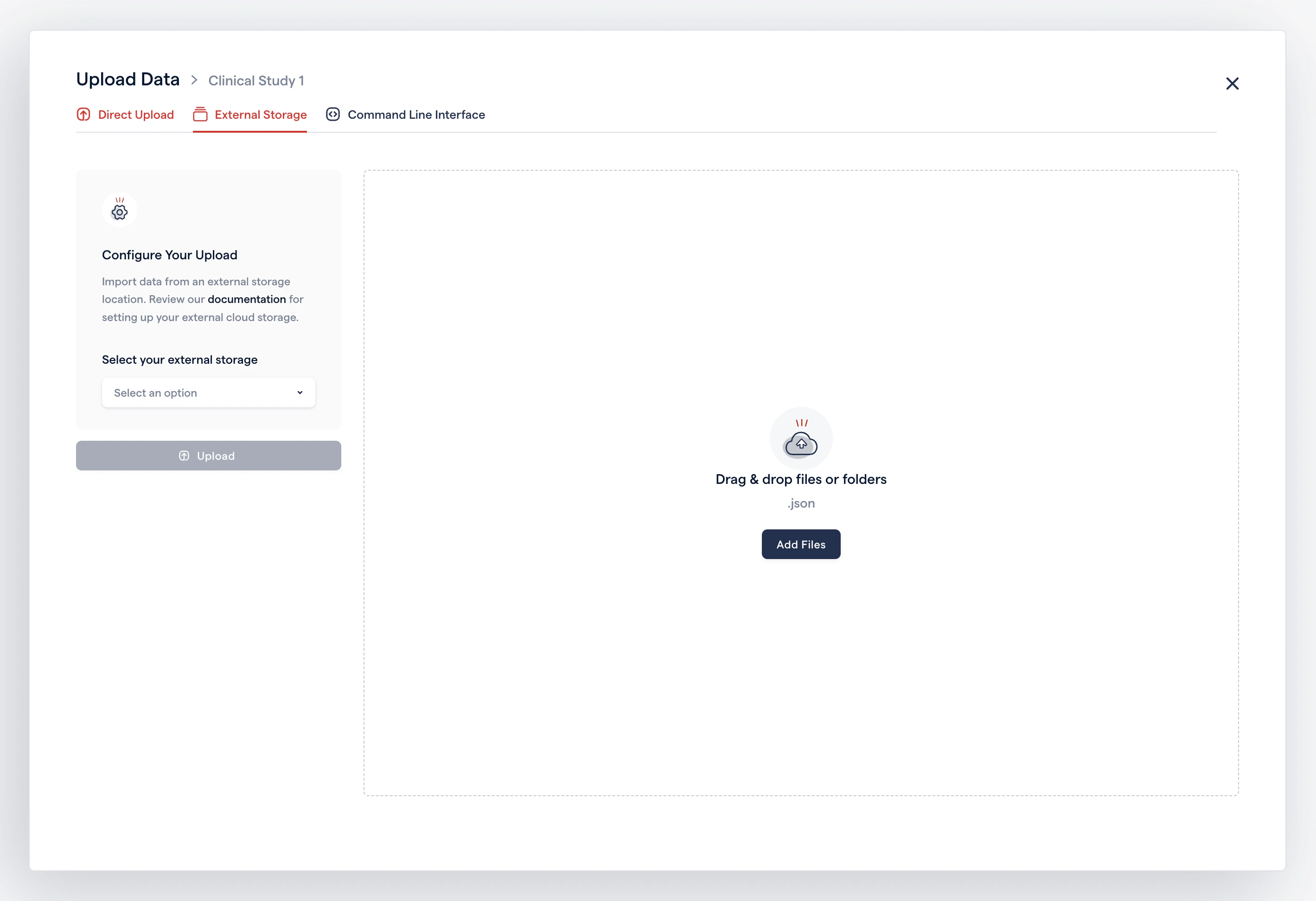
After creating your JSON Items List, you can upload it from RedBrick AI's Project Dashboard or by using the [SDK](/python-sdk/sdk-overview/importing-data-and-annotations).
 Please note that there is no need to create an Items List when using [Direct
Upload](/importing-data/uploading-data-to-redbrick).
***
## Example Items Lists
The example below contains fields relevant to image-only uploads.
```typescript theme={null}
type Items = Task[];
interface Task {
// A unique, user-defined ID
// After import, you can search tasks using this field.
name: string;
// You can upload a single series, or an entire study (array of series)
series: Series[];
}
interface Series {
// Filepath/URL's of all the instances in a single series.
items: string[] | string;
name: string;
}
```
The `items` entry enumerates the file paths referencing your data in your cloud storage. Depending on the storage method, this file path may be relative to your bucket name or the root folder in your bucket. Please reference the relevant documentation to verify the format of the Items List for each of RedBrick AI’s supported storage methods:
* [AWS S3 Items List](./configuring-aws-s3#items-path)
* [Azure Blob Items List](./configuring-azure-blob#items-path)
* [GCS Items List](./configuring-gcs#items-path)
### Example Item Lists by Format
#### 3D DICOM
This Items List will upload a single Task containing two Series.
```json theme={null}
[
{
"name": "study001",
"series": [
{
"items": [
"study001/series001/001.dcm",
"study001/series001/002.dcm",
"study001/series001/003.dcm"
]
},
{
"items": [
"study001/series002/001.dcm",
"study001/series002/002.dcm",
"study001/series002/003.dcm"
]
}
]
}
]
```
This Items List will upload two Tasks, each containing a single Series.
```json theme={null}
[
{
"name": "series001",
"series": [
{
"items": ["series001/001.dcm", "series001/002.dcm", "series001/003.dcm"]
}
]
},
{
"name": "series002",
"series": [
{
"items": ["series002/001.dcm", "series002/002.dcm", "series002/003.dcm"]
}
]
}
]
```
#### NIfTI
Please note that `items` must be a single string for NIfTI uploads.
This Items List will upload a single Task containing two Series.
```json theme={null}
[
{
"name": "study001",
"series": [
{
"items": "series001.nii"
},
{
"items": "series002.nii"
}
]
}
]
```
This Items List will upload two Tasks, each containing one Series.
```json theme={null}
[
{
"name": "series1",
"series": [
{
"items": "series001.nii"
}
]
},
{
"name": "series2",
"series": [
{
"items": "series002.nii"
}
]
}
]
```
#### 2D Image
This Items List will upload a single Task containing two images.
```json theme={null}
[
{
"name": "patient1",
"series": [
{
"items": "scan1.dcm"
},
{
"items": "scan2.dcm"
}
]
}
]
```
This Items List will upload two Tasks, each containing a single image.
```json theme={null}
[
{
"name": "patient1",
"series": [
{
"items": "scan.dcm"
}
]
},
{
"name": "patient2",
"series": [
{
"items": "scan.dcm"
}
]
}
]
```
#### Video Frames
The frames must be in the correct order in the `items` array.
This Items List will upload a single Task with two videos, where each video contains three frames.
```json theme={null}
[
{
"name": "study001",
"series": [
{
"items": [
"study001/series001/001.png",
"study001/series001/002.png",
"study001/series001/003.png"
]
},
{
"items": [
"study001/series002/001.png",
"study001/series002/002.png",
"study001/series002/003.png"
]
}
]
}
]
```
This Items List will upload two Tasks, each containing a single video with three frames.
```json theme={null}
[
{
"name": "video1",
"series": [
{
"items": ["001.png", "002.png", "003.png"]
}
]
},
{
"name": "video2",
"series": [
{
"items": ["001.png", "002.png", "003.png"]
}
]
}
]
```
***
## Automatically Split Study
In some use cases, you can rely on RedBrick AI to split your Study into a list of Series. This can be especially useful if you do not follow a strict naming convention for your studies.
You can upload a single Series or multiple Series per task using the simplified Study-Level format.
Please note that any Tasks uploaded using this format will only be automatically split **after** a user opens the Task in the Annotation Tool.
```javascript theme={null}
type Items = Task[];
interface Task {
// A unique, user-defined ID
// After import, you can search tasks using this field.
name: String;
// You can upload a single series, or an entire study (array of .dcm files)
// The items array will automatically be split into individual series.
items: String[];
}
```
The Items List below will create a single task containing one or more series. RedBrick AI will parse the DICOM files on the client side and automatically split this list of `.dcm` into one or more series (depending on the DICOM headers).
```json theme={null}
[
{
"name": "study001",
"items": [
"bbfa85feb36f.dcm",
"d4a49634cd4c.dcm",
"eed2e7462ba5.dcm",
"45455dd0e45b.dcm"
]
}
]
```
The Items List below will create a single task containing exactly two series. RedBrick AI will assume each of the NIfTI files in the `items` array is an individual series.
```json theme={null}
[
{
"name": "study001",
"items": ["bbfa85feb36f.nii.gz", "d4a49634cd4c.nii"]
}
]
```
This format is the same as the Legacy Items List format (pre-July 2022)
Please note that there is no need to create an Items List when using [Direct
Upload](/importing-data/uploading-data-to-redbrick).
***
## Example Items Lists
The example below contains fields relevant to image-only uploads.
```typescript theme={null}
type Items = Task[];
interface Task {
// A unique, user-defined ID
// After import, you can search tasks using this field.
name: string;
// You can upload a single series, or an entire study (array of series)
series: Series[];
}
interface Series {
// Filepath/URL's of all the instances in a single series.
items: string[] | string;
name: string;
}
```
The `items` entry enumerates the file paths referencing your data in your cloud storage. Depending on the storage method, this file path may be relative to your bucket name or the root folder in your bucket. Please reference the relevant documentation to verify the format of the Items List for each of RedBrick AI’s supported storage methods:
* [AWS S3 Items List](./configuring-aws-s3#items-path)
* [Azure Blob Items List](./configuring-azure-blob#items-path)
* [GCS Items List](./configuring-gcs#items-path)
### Example Item Lists by Format
#### 3D DICOM
This Items List will upload a single Task containing two Series.
```json theme={null}
[
{
"name": "study001",
"series": [
{
"items": [
"study001/series001/001.dcm",
"study001/series001/002.dcm",
"study001/series001/003.dcm"
]
},
{
"items": [
"study001/series002/001.dcm",
"study001/series002/002.dcm",
"study001/series002/003.dcm"
]
}
]
}
]
```
This Items List will upload two Tasks, each containing a single Series.
```json theme={null}
[
{
"name": "series001",
"series": [
{
"items": ["series001/001.dcm", "series001/002.dcm", "series001/003.dcm"]
}
]
},
{
"name": "series002",
"series": [
{
"items": ["series002/001.dcm", "series002/002.dcm", "series002/003.dcm"]
}
]
}
]
```
#### NIfTI
Please note that `items` must be a single string for NIfTI uploads.
This Items List will upload a single Task containing two Series.
```json theme={null}
[
{
"name": "study001",
"series": [
{
"items": "series001.nii"
},
{
"items": "series002.nii"
}
]
}
]
```
This Items List will upload two Tasks, each containing one Series.
```json theme={null}
[
{
"name": "series1",
"series": [
{
"items": "series001.nii"
}
]
},
{
"name": "series2",
"series": [
{
"items": "series002.nii"
}
]
}
]
```
#### 2D Image
This Items List will upload a single Task containing two images.
```json theme={null}
[
{
"name": "patient1",
"series": [
{
"items": "scan1.dcm"
},
{
"items": "scan2.dcm"
}
]
}
]
```
This Items List will upload two Tasks, each containing a single image.
```json theme={null}
[
{
"name": "patient1",
"series": [
{
"items": "scan.dcm"
}
]
},
{
"name": "patient2",
"series": [
{
"items": "scan.dcm"
}
]
}
]
```
#### Video Frames
The frames must be in the correct order in the `items` array.
This Items List will upload a single Task with two videos, where each video contains three frames.
```json theme={null}
[
{
"name": "study001",
"series": [
{
"items": [
"study001/series001/001.png",
"study001/series001/002.png",
"study001/series001/003.png"
]
},
{
"items": [
"study001/series002/001.png",
"study001/series002/002.png",
"study001/series002/003.png"
]
}
]
}
]
```
This Items List will upload two Tasks, each containing a single video with three frames.
```json theme={null}
[
{
"name": "video1",
"series": [
{
"items": ["001.png", "002.png", "003.png"]
}
]
},
{
"name": "video2",
"series": [
{
"items": ["001.png", "002.png", "003.png"]
}
]
}
]
```
***
## Automatically Split Study
In some use cases, you can rely on RedBrick AI to split your Study into a list of Series. This can be especially useful if you do not follow a strict naming convention for your studies.
You can upload a single Series or multiple Series per task using the simplified Study-Level format.
Please note that any Tasks uploaded using this format will only be automatically split **after** a user opens the Task in the Annotation Tool.
```javascript theme={null}
type Items = Task[];
interface Task {
// A unique, user-defined ID
// After import, you can search tasks using this field.
name: String;
// You can upload a single series, or an entire study (array of .dcm files)
// The items array will automatically be split into individual series.
items: String[];
}
```
The Items List below will create a single task containing one or more series. RedBrick AI will parse the DICOM files on the client side and automatically split this list of `.dcm` into one or more series (depending on the DICOM headers).
```json theme={null}
[
{
"name": "study001",
"items": [
"bbfa85feb36f.dcm",
"d4a49634cd4c.dcm",
"eed2e7462ba5.dcm",
"45455dd0e45b.dcm"
]
}
]
```
The Items List below will create a single task containing exactly two series. RedBrick AI will assume each of the NIfTI files in the `items` array is an individual series.
```json theme={null}
[
{
"name": "study001",
"items": ["bbfa85feb36f.nii.gz", "d4a49634cd4c.nii"]
}
]
```
This format is the same as the Legacy Items List format (pre-July 2022)