> ## Documentation Index
> Fetch the complete documentation index at: https://app.redbrickai.com/docs/llms.txt
> Use this file to discover all available pages before exploring further.
# Webhooks for task events
> Configure RedBrick AI webhooks to receive HTTP push notifications for project events including task created, task entered stage, and task deleted.
Webhooks allow you to receive an HTTP push notification triggered by certain events within a project. Currently, webhooks are triggered by the following events:
1. **Task created**: When a data point is uploaded, and a task is created from that data point.
2. **Task entered stage**: When a task enters a new stage in the labeling workflow.
3. **Task deleted**: When a task is deleted.
```json theme={null}
{
"version": "v1.0",
"events": 1,
"payload": [
{
"event": "TASK_CREATED",
"id": "...",
"timestamp": ...,
"data": {
"orgId": "...",
"projectId": "...",
"taskId": "...",
"taskName": "...",
"updatedBy": "..."
}
}
]
}
```
```json theme={null}
{
"version": "v1.0",
"events": 1,
"payload": [
{
"event": "TASK_ENTERED_STAGE",
"id": "...",
"timestamp": ...,
"data": {
"orgId": "...",
"projectId": "...",
"taskId": "...",
"stageName": "...",
"updatedBy": "..."
}
}
]
}
```
```
{
"version": "v1.0",
"events": 1,
"payload": [
{
"event": "TASK_DELETED",
"id": "...",
"timestamp": ...,
"data": {
"orgId": "...",
"projectId": "...",
"taskId": "...",
"taskName": "...",
"updatedBy": "..."
}
}
]
}
```
## Using Webhooks
Configure a webhook from the Project Settings, as shown in the image below.
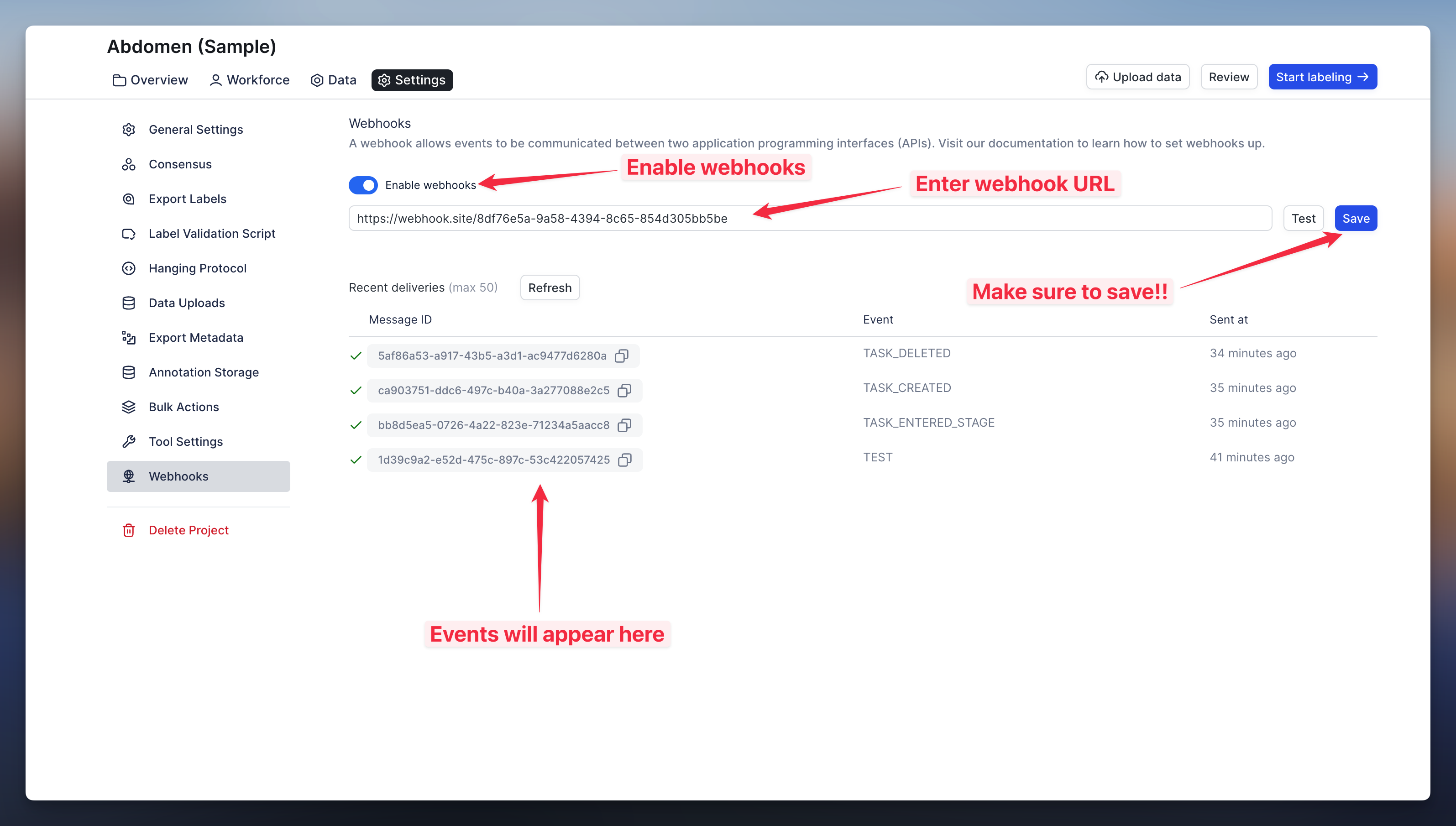 You can use tools like [https://webhook.site/](https://webhook.site/#!/view/8df76e5a-9a58-4394-8c65-854d305bb5be) to test the webhook and inspect the response format.