> ## Documentation Index
> Fetch the complete documentation index at: https://app.redbrickai.com/docs/llms.txt
> Use this file to discover all available pages before exploring further.
# Install the SDK and generate API keys
> Install the RedBrick AI Python SDK and CLI from PyPI with pip and generate the API keys needed to authenticate scripts against your organization's projects.
## Installation
The RedBrick AI SDK and CLI are available on [PyPI](https://pypi.org/project/redbrick-sdk/) and can be installed using `pip`. The SDK and CLI are packaged together.
```bash theme={null}
$ pip install -U redbrick-sdk
```
The SDK and CLI work on Mac, Windows, and Linux.
They are compatible with **python version 3.8+**
## Authentication
### Browser-Based Login (Recommended)
Browser-based login is the recommended way to authenticate with the SDK and CLI. It is more secure than API keys and supports single sign-on (SSO).
To authenticate via browser with the **SDK**, call `redbrick.login()` in your Python script. This opens your browser to complete authentication, after which you can use `redbrick.get_org()` and `redbrick.get_project()` without an `api_key` argument.
To authenticate via browser with the **CLI**, run:
```bash theme={null}
$ redbrick login
```
This stores short-lived session credentials locally. The CLI will periodically prompt you to switch to browser login if you are still using API key authentication.
API keys will be sunset in favor of service accounts in a future release. We recommend migrating to browser-based login.
### API Keys
If you prefer to use API keys, you can generate one from the dashboard. To do so:
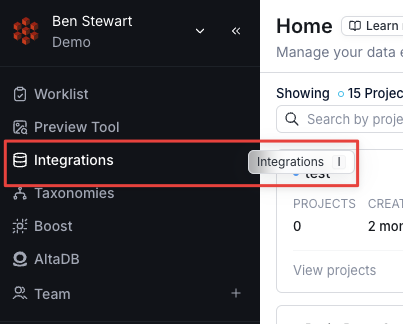
1. Click on **Integrations** (or use the "i" shortcut)
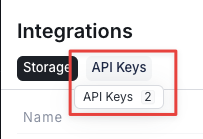
2. Click on **API Keys** (or use the "2" shortcut)
3. In the top right corner, click on **Create API Key**
4. In the pop-up field, give your API key a name
 After you've generated your API key, you can copy it to wherever is necessary - your CLI credentials file, your Python file, etc.
**Please note** that all API keys provide you with the equivalent of [Org Admin permissions](/docs/organizations/what-is-an-organization#organization-level-roles). Be sure to use your API keys with care!
## Organization and Project IDs
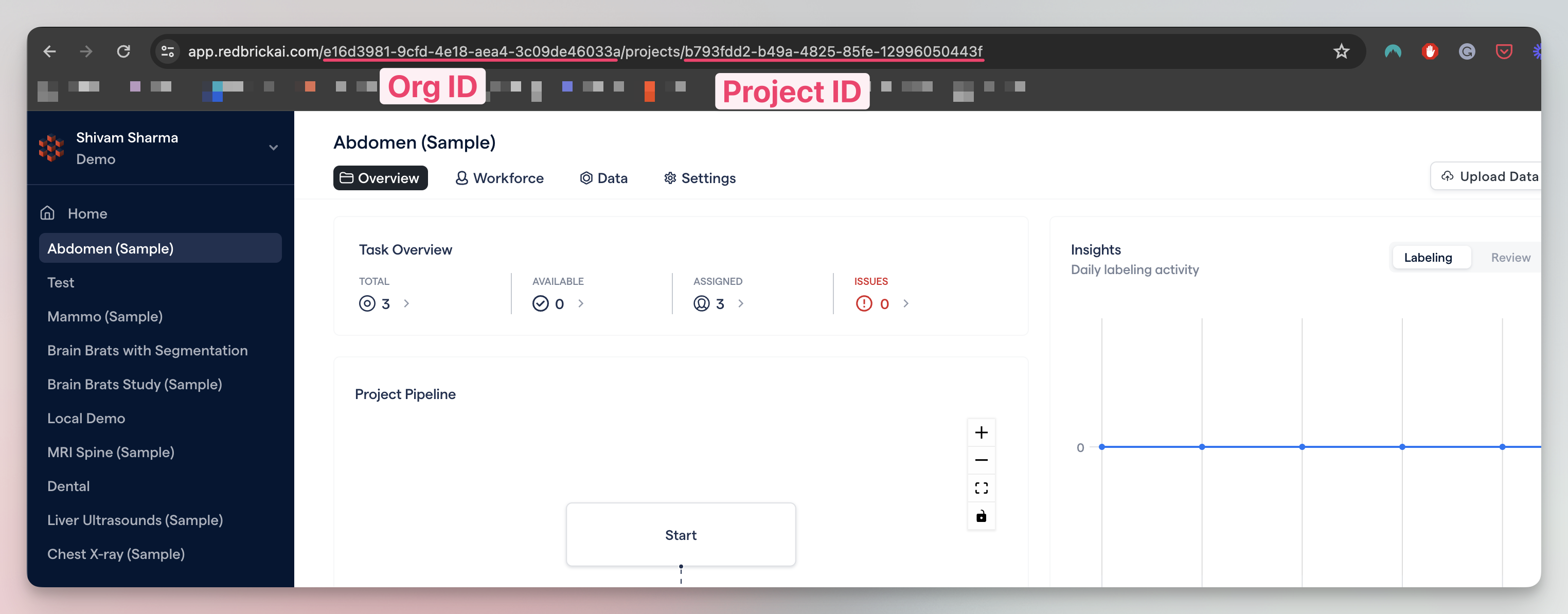
For most SDK / CLI operations, you will need your Organization and/or Project ids. These are unique ids for each entity. You can find both the Organization and Project ID inside the **Settings Page of any Project**.
You can also find the Organization and Project IDs within the browser URL -> navigate to any project - [https://app.redbrickai.com/\$org\_id/projects/\$project\_id](https://app.redbrickai.com/\$org_id/projects/\$project_id).
After you've generated your API key, you can copy it to wherever is necessary - your CLI credentials file, your Python file, etc.
**Please note** that all API keys provide you with the equivalent of [Org Admin permissions](/docs/organizations/what-is-an-organization#organization-level-roles). Be sure to use your API keys with care!
## Organization and Project IDs
For most SDK / CLI operations, you will need your Organization and/or Project ids. These are unique ids for each entity. You can find both the Organization and Project ID inside the **Settings Page of any Project**.
You can also find the Organization and Project IDs within the browser URL -> navigate to any project - [https://app.redbrickai.com/\$org\_id/projects/\$project\_id](https://app.redbrickai.com/\$org_id/projects/\$project_id).