

For example, the labeler must segment a tumor and fill out a few related attributes if a tumor is found. A common error can be forgetting to fill out all attributes when the tumor is present. Post-processing scripts usually reveal these errors. Prevent simple, recurrent errors from occurring by writing a set of tests that will be run regularly, informing labelers of any mistakes they’re making.
Overview of custom label validation
Overview
By default, all projects have a custom check to warn labelers when they submit tasks without any annotations. You can enable/disable custom validation under Project Settings -> Label Validation.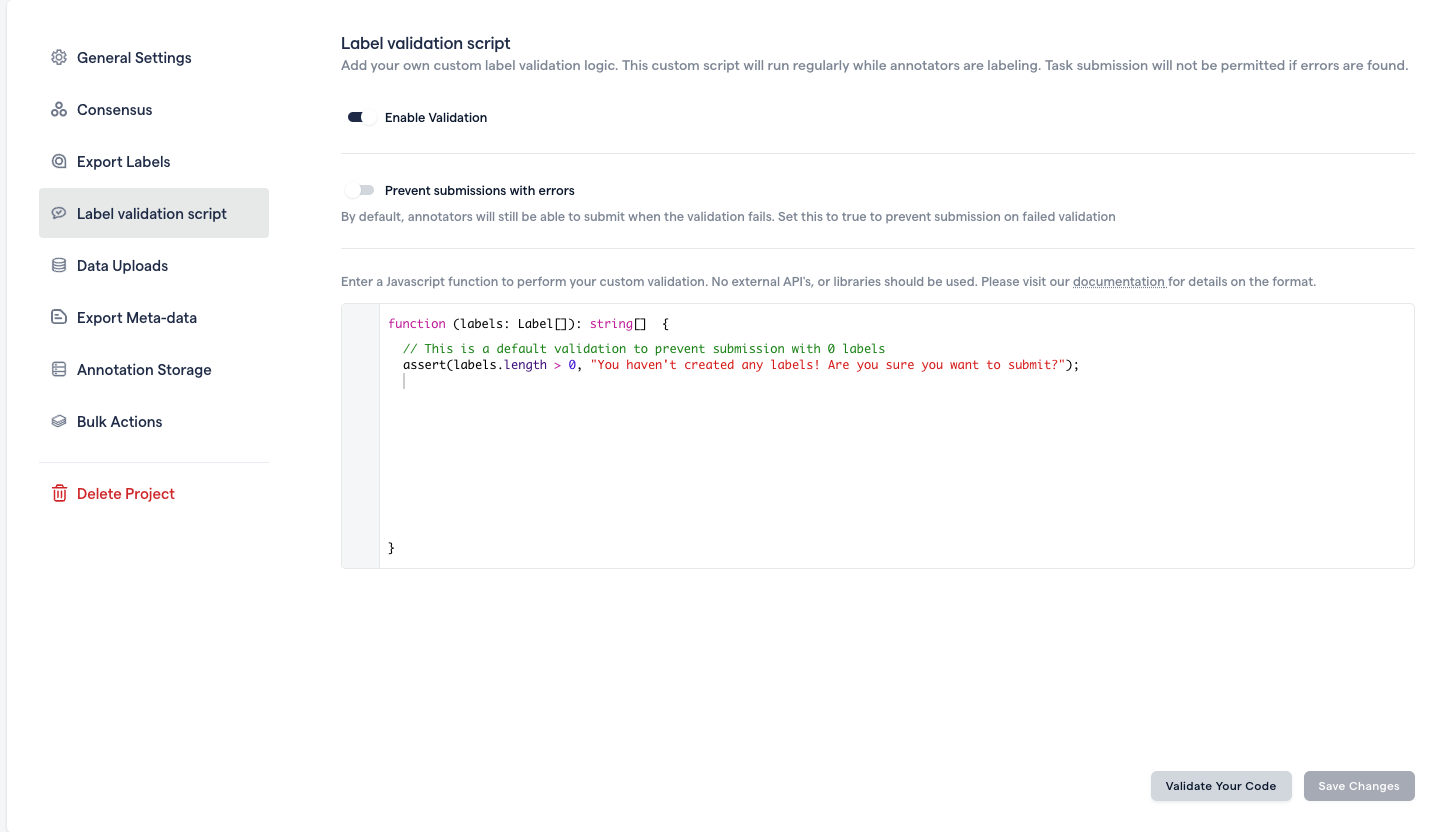
Custom label validation in settings
Prevent Submissions with Errors
By default, labelers will just receive the error messages as a warning, and they will still be able to submit the task anyway. To prevent the labelers from submitting with any errors present, toggle the Prevent submission with errors switch.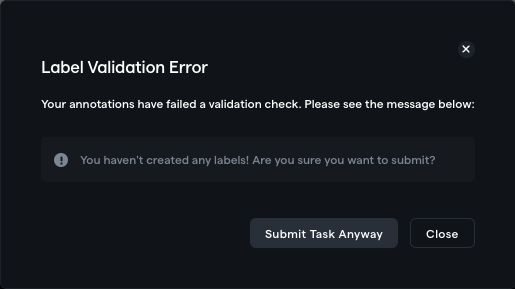
Submission allowed
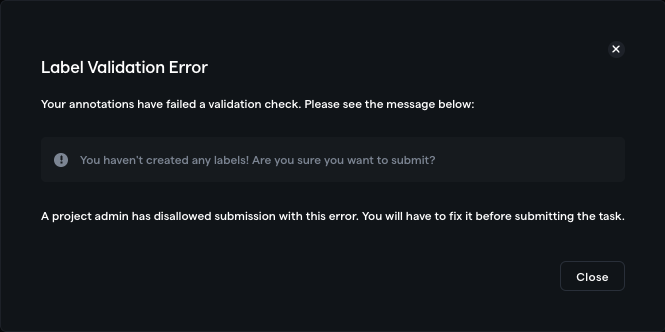
Submission with errors prevented
Custom JavaScript Function
You will write the custom validation as a JavaScript function. This JavaScript function runs on each labeler’s browser while they are annotating data.The Javascript function has the following definition:
label: Label[]
The validation function has a single input - a list of labels containing minimal metadata about the labels. Please see the definition of the Label object below:
Label[] object by going to the labeling tool -> opening command bar cmd/ctrl + k -> Copy current label state to clipboard.
[] if no errors are found. These error message strings will be displayed to the labelers on the labeling tool.
To help you write a validation function with several checks, RedBrick AI has a custom-defined function assert that accepts a boolean statement and a corresponding error message. The two scripts below will produce the same result:
- With assert()
- Without assert()
Validate Your Code
Before saving your script, you should validate that your code executes as expected. Click on the validate button on the bottom right of the Settings page, and paste the JSON object copied from the labeling tool to see if your code executes as expected: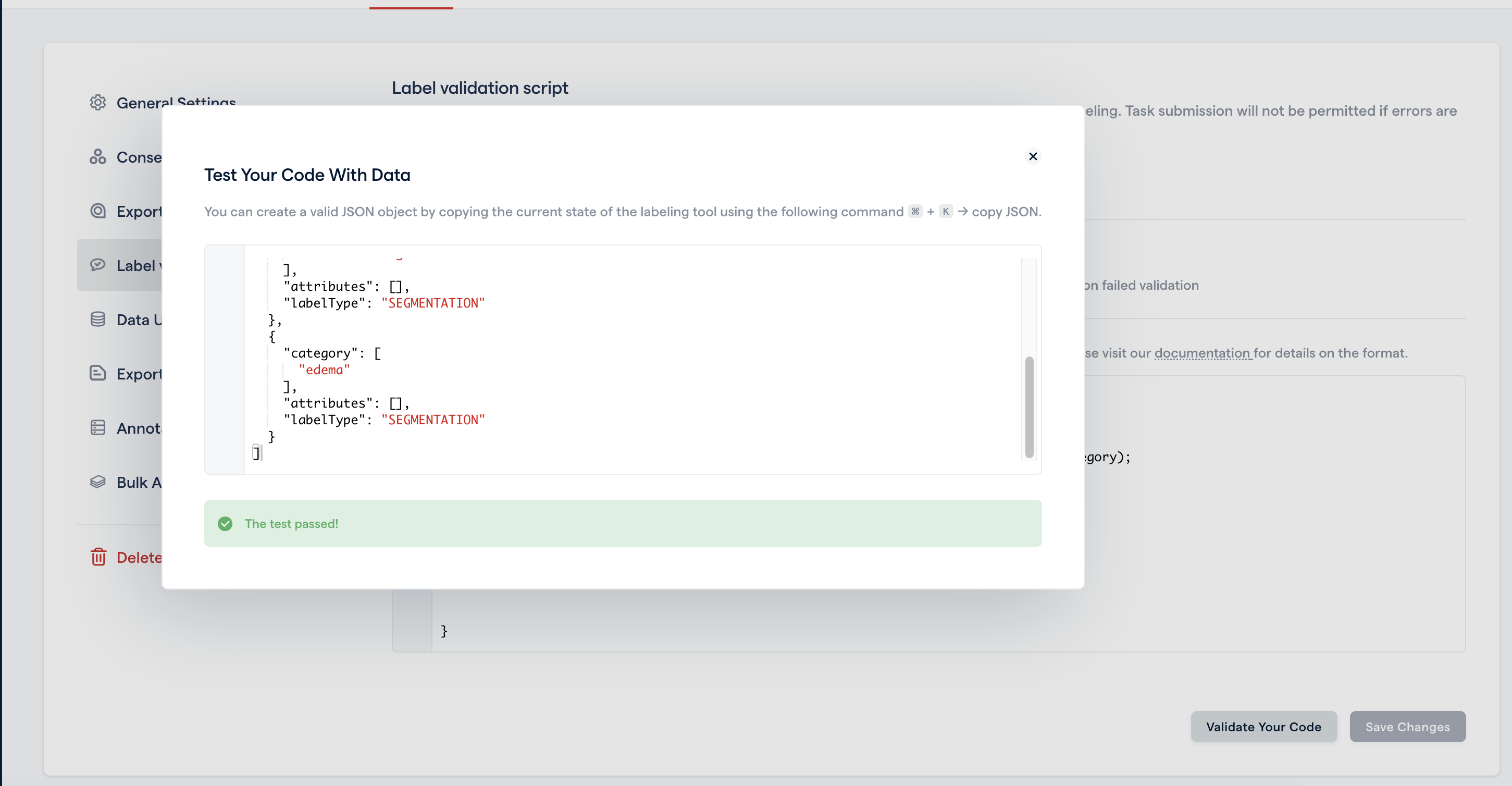
Displaying the Validation on the Labeling Tool
Your custom validation script will be regularly run. If any warnings are found, an indicator will appear on the right side of the bottom bar. If you have enabled Prevent submissions with errors, the indicator will be red.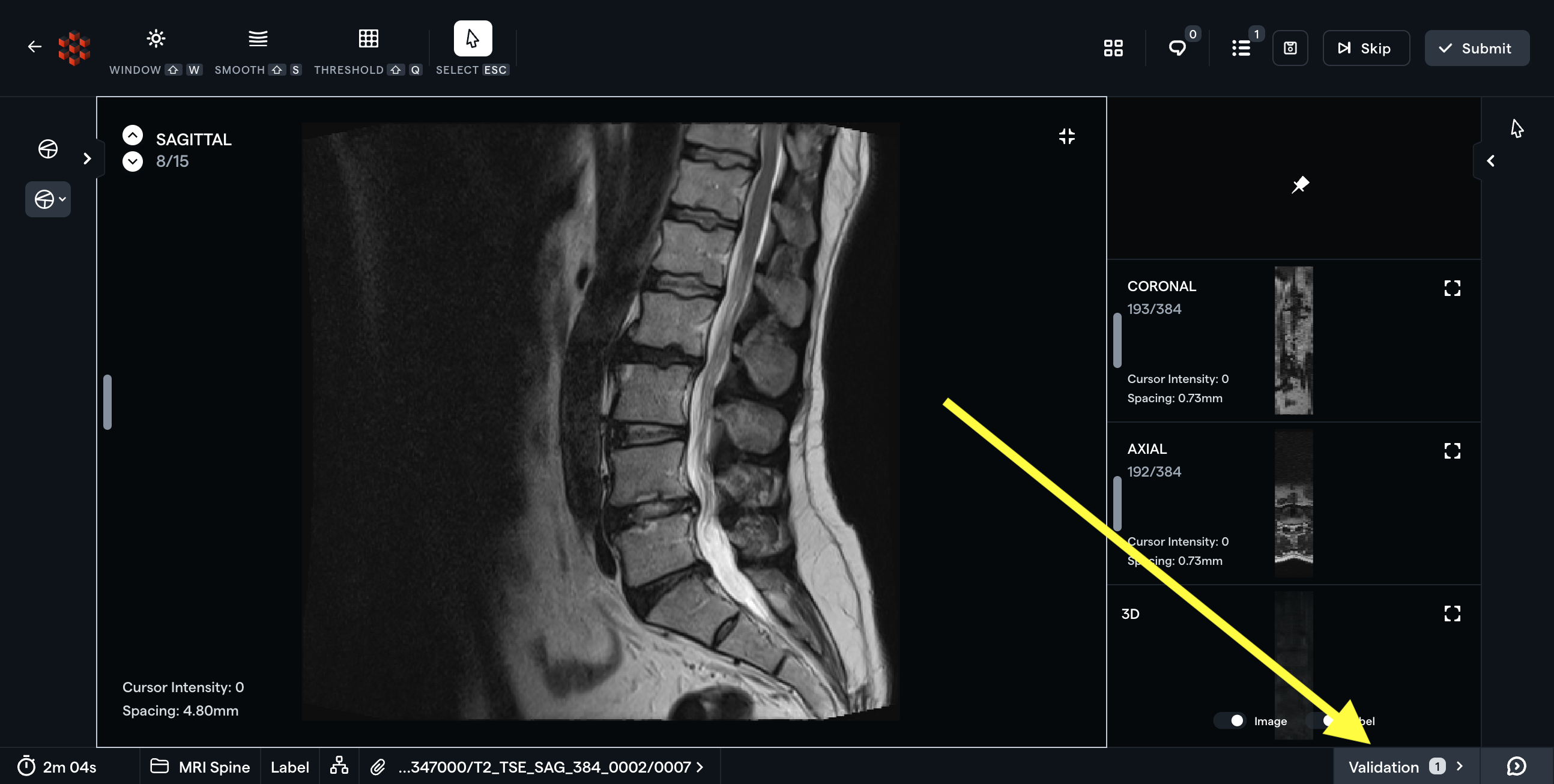
Submission with errors is allowed
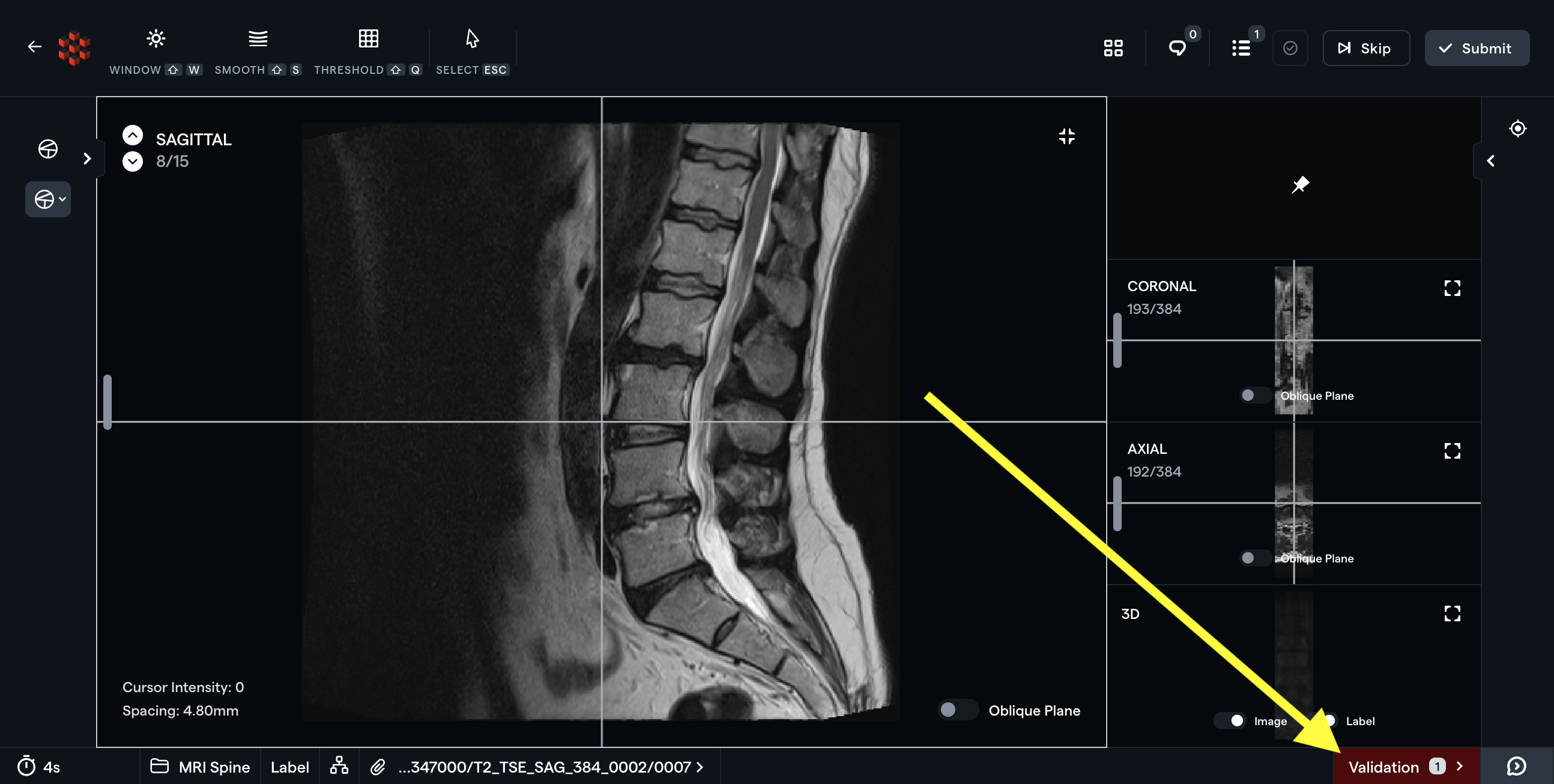
Submission with errors is prevented
Example Scripts
Check if Exact Categories Are Present
For this example, let’s say we are expecting each task to contain the following segmentations - necrosis, enhancing tumor, non-enhancing tumor and edema.Validate Only Single Instance of a Category Has Been Created
This script validates only a single instance of a particular category has been created. If you’re expecting semantic segmentation labels, this check can ensure labelers don’t accidentally create multiple instance segmentations.Verify That Specific Segmentation Type Is Visible on Specific Series
The following script examines the Series Identifier and verifies whether a specific Segmentation type is present on it. In this example, you could use this script to be sure that labelers cannot finalize a Series that ends in “DWI” (a common naming convention for DWI images) without including an “Infarct” segmentation on the Series. More broadly speaking, this script is an example of the extensive functionality available when combining thelabel, task, and series objects.